
Creality K2 Plus and K2 Pro first print setup: from unboxing to your first part
The Creality K2 Plus and K2 Pro ship close to print-ready, but the first half hour still matters. This guide follows Creality's own documentation from mounting the touchscreen to pulling your first part off the bed. Along the way it covers the automatic calibrations, the CFS, and getting the printer on your network.
Find My 3D Printer editorial team·Published October 31, 2026·Manufacturer documentation, no hands-on tests claimed

The short answer
According to Creality, the K2 Plus and K2 Pro are ready to print once you unbox them and install the touchscreen, after which an on-screen boot-up guide runs automatic calibrations including bed leveling and fan calibration. The smart leveling probes only the area your model will occupy, and on these two models a nozzle-mounted AI camera tunes flow rate in real time. Combo versions include one CFS unit, which handles auto refill, tangle detection, and RFID recognition of Creality-tagged spools. For your first print, Creality points you toward PLA and PETG, while ABS and ASA call for a 60 °C heated chamber.
What to sort out before you power it on
Creality's K2 Series page says every model in the lineup can be ready to print right after unboxing and installing the touchscreen. That's the only hardware step the company calls out, so there's no kit-style build ahead of you. Follow the quick-start sheet in the box for the cables, and pull off any packing material that kept the machine safe in shipping before you flip the switch for the first time.
Plan your space, too. The comparison chart lists the K2 Plus at 495 × 515 × 640 mm and the K2 Pro at 445 × 477 × 573 mm, and that's before you add a CFS if you bought the Combo. Put the printer on a sturdy bench near an outlet and, ideally, near an Ethernet jack, since both the K2 Pro and K2 Plus have a wired port. For the general checks that apply to any new machine, our first setup checklist pairs well with this page.
Let the startup wizard run its calibrations
On first boot, Creality says the touchscreen walks you through a quick guide that runs automatic calibrations, including bed leveling and fan calibration. Let it finish. Don't cut power, and don't open the door halfway through. It's tempting to skip ahead to printing, but this sequence is the foundation every later setting builds on, and it's what your first few parts will depend on for clean results.
Some tuning happens without you lifting a finger. The series comparison chart lists belt tensioning as auto adjusted. On the K2 Pro and K2 Plus, Creality adds a nozzle AI camera that adjusts flow rate in real time to head off under- and over-extrusion; the base K2 doesn't have it. In other words, Creality treats flow calibration as automatic on these two models. It's still worth knowing the manual approach in our 3D printer calibration guide for the day a third-party spool acts up.
How smart leveling sets up your first layer
K2 leveling doesn't redo a full bed mesh every time. Creality describes its smart auto leveling as probing only where your model will actually print. The payoff is time before each job, which adds up on the 350 × 350 mm bed of the K2 Plus or the 300 × 300 mm bed of the K2 Pro when you're only printing a small part in the middle and don't want to sit through a full probe.
Targeted probing doesn't make up for a dirty plate, though. A fingerprint or leftover glue is enough to lift a first layer that was measured perfectly. Wipe the surface before your first print, then watch the opening lines go down: they should be slightly squished, continuous, and fused to each other. If they stay round or start peeling, check plate cleanliness and your material profile before you blame the sensor. Our first layer guide walks through reading those symptoms and fixing them in the right order.
Setting up the CFS and loading spools
The CFS is Creality's multi-spool system. According to the series page, the K2 Plus and K2 Pro Combo bundles ship with one unit, and you can link up to four of them for as many as 16 colors. The CFS handles auto refill when a spool runs out, detects tangles, and reads RFID tags. One catch: automatic filament identification only works with Creality's RFID-tagged spools, so with any other brand you'll need to enter the material and color on the touchscreen yourself.
Creality lists PLA and PETG as the go-to materials for multicolor work with the CFS. The same page also shows a second unit, the CFS 2, with two independently controlled chambers, drying up to 85 °C, and smart dehumidification, aimed at engineering-grade and moisture-sensitive filaments. Running a CFS and a CFS 2 on one printer is supported, but it depends on firmware, so check your version before you wire everything together. Our Creality CFS page covers how it works day to day and where its limits are.
Getting connected: Wi-Fi, Ethernet, and Creality's software
Creality's K2 Plus support page lays out two ways to talk to the printer. On your local network, CrealityPrint 5 handles control and file transfer. For remote access, you bind the printer to Creality Cloud: open the Creality Cloud app and scan the QR code from the homepage, as the support page describes. Per the comparison chart, the K2 Plus supports both 2.4 GHz and 5 GHz Wi-Fi plus Ethernet, while the K2 Pro offers 2.4 GHz Wi-Fi and an RJ45 port.
For a first print, a network cable is the easiest path if your router is close by: nothing to type in, and a steady link for moving big files. A USB drive works as well, since the chart lists USB across the whole lineup. As for cloud slicing, the K2 Plus support page flagged that Creality was migrating its cloud engine to a new multicolor slicer because the old one wasn't compatible with this printer. Check the current status in the app. For getting started, local CrealityPrint is the documented route.
Picking a material and speed for print number one
Start with PLA or PETG. Those are the materials Creality highlights for multicolor printing with the CFS, and neither one needs a heated chamber. Creality lists a typical print speed of 300 mm/s across the lineup, with a ceiling of 600 mm/s, and recommends its Hyper Series filaments for high-speed jobs. So stick with the stock CrealityPrint profile instead of cranking the speed on day one. Meanwhile, the chamber AI camera keeps an eye out for spaghetti-style failures and sends you an alert.
Engineering materials come next. The K2 Pro and K2 Plus have active chamber heating up to 60 °C and a hardened steel nozzle. Creality says ABS, ASA, and PPS need a 60 °C chamber and PAHT-CF needs 50 °C, which helps keep corners from lifting. Try your first ABS or ASA job on a small part with the door closed. The printer has a built-in air purifier for filtering VOCs, but you should still keep the room it runs in well ventilated.
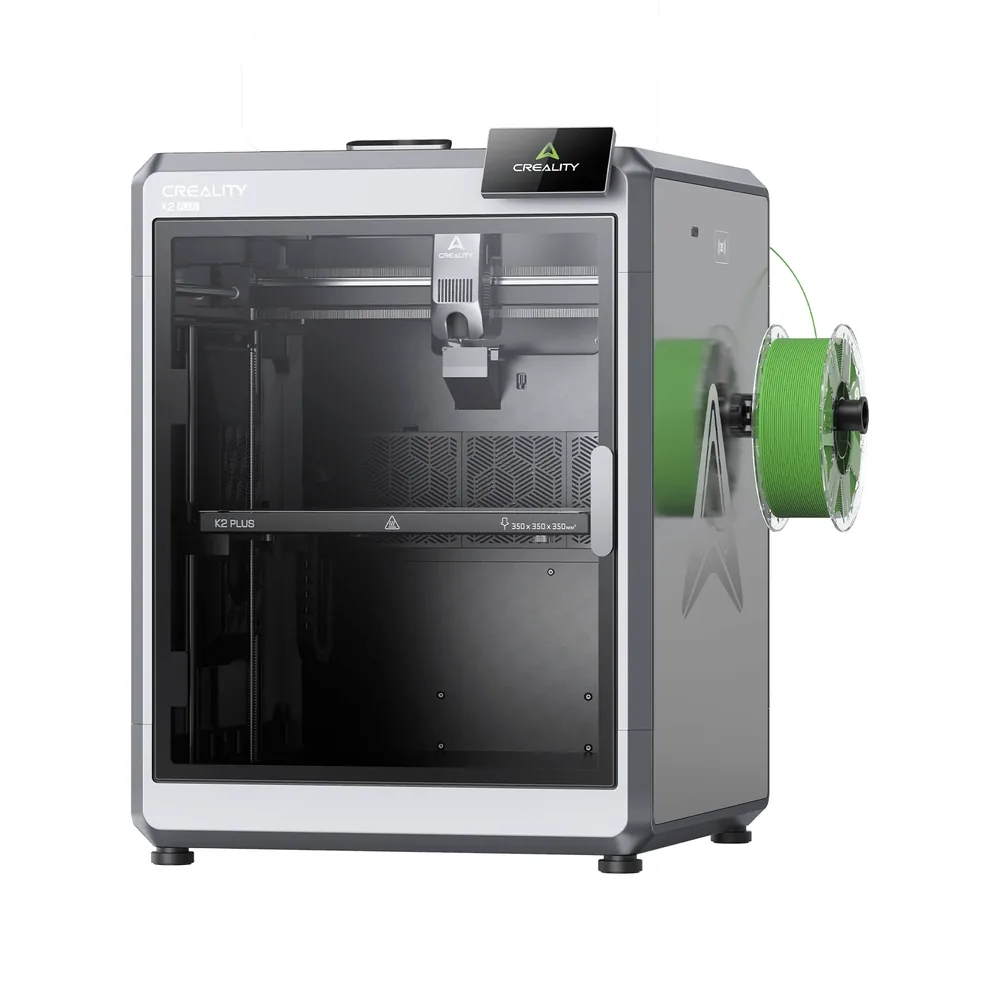
Creality K2 Plus
350 × 350 × 350 mm
FOC step-servo motors on the XYZ axes and extrusion, an 800 W heated chamber, and a top speed advertised at 600 mm/s.
The multicolor CFS system remains a separate accessory: check precisely whether your listing includes it before counting on 16-color printing out of the box.
Specifications and seller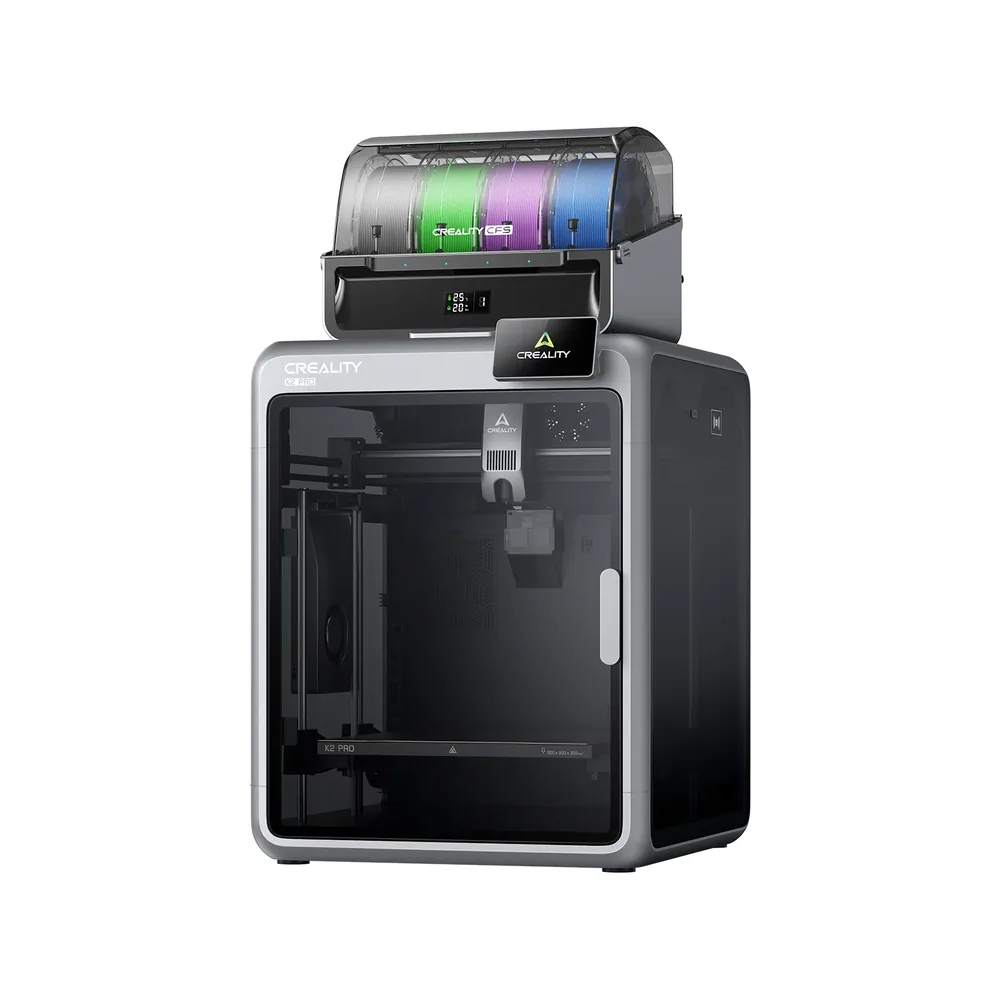
Creality K2 Pro
300 × 300 × 300 mm
Dual AI cameras (chamber and nozzle) for failure detection and flow adjustment, a chamber heated to 60°C, and a top speed advertised at 600 mm/s.
The K2 Pro is mostly sold as a Combo pack with CFS; a standalone machine version exists but availability varies by region.
Specifications and sellerSources and limits
- Creality — K2 Series (product line)
- Creality — K2 Plus CFS Combo (support)
We organize manufacturer and community documentation; we have not measured these products ourselves. The manual for your exact model takes precedence over general guidance.
A clearer shortlist starts with your projects.
Use the free buying checklist and budget worksheet before comparing offers.